If there is no suitable time
The visitor can leave a callback request with permission. The chat does not promise a response time or create an unconfirmed appointment.
HOW CLIENTAVO WORKS
Clientavo connects approved company answers, callback requests and appointment booking in one website chat. You choose the facts and booking rules; the visitor chooses whether to share details and confirm a visit.
HOW IT WORKS
Explore the visitor experience and the connected company workspace. The sample uses fictional data.
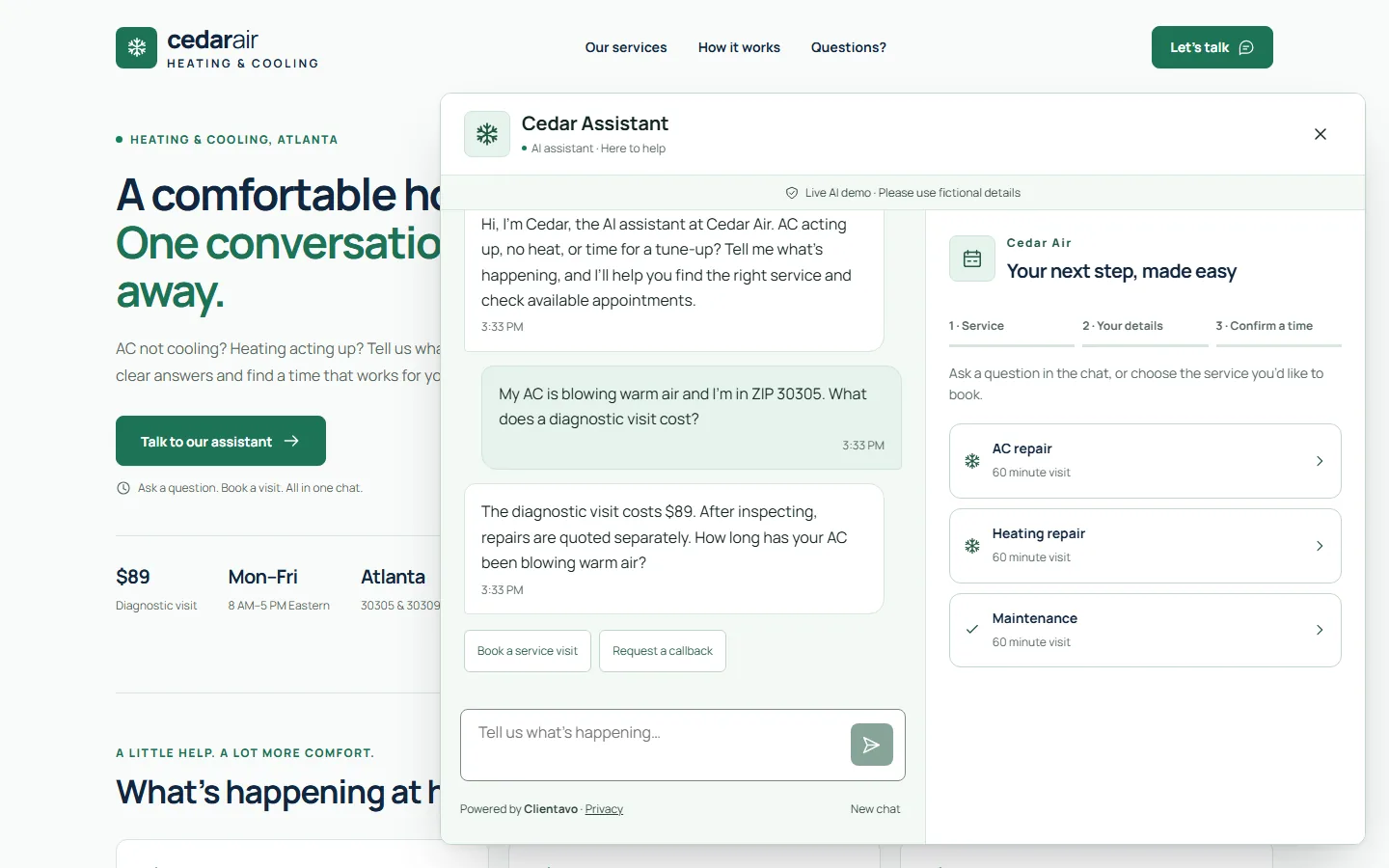
The visitor can leave a callback request with permission. The chat does not promise a response time or create an unconfirmed appointment.
The assistant asks the company to confirm instead of guessing a price, warranty or service policy. You can review the question and approve an answer for future visitors.
Emergency guidance takes priority. A conversation about a gas smell or immediate danger does not continue as a routine booking.
A THOUGHTFUL START. A SIMPLE INSTALL.
Add your website. Review the imported facts, services and service area. You decide what gets published.
Set up your assistant, callback preferences and booking availability. Try a repair booking, a callback and a question it can’t answer, and check each result.
Copy the website code from your dashboard, install it on your site and verify the connection. Activate the trial when the tests look right.
Compare qualified contacts, confirmed appointments and completed jobs. Decide whether it earns its monthly cost.
JavaScript installation · WordPress · Wix · Squarespace*
*Requires access to custom code. Platform plan restrictions may apply.The public demo uses fictional company information and does not create real service visits or subscriptions. In your account, use your own private test chat while preparing the assistant. Trial activation is a separate step after installation.
Explore HVAC use cases · See the plan and trial terms · Open the interactive demo
Set up and test it free, no card. Your 14-day trial starts only when you activate it, after your assistant is installed.
Card needed at activation · $199/month (excl. VAT / taxes) after the trial · Cancel before the trial ends and pay nothing · No automatic overage charges
AI assistant · Answers from our product guide.
I’m an AI assistant. I answer only from Clientavo’s product guide and say when I don’t know, the same rule your website assistant follows. Please don’t share personal or customer details.